After fixing the Wi-Fi stutter on my TrimUI Smart Pro, Moonlight finally streamed without the freezes. But the client itself still bugged me.
The Moonlight app that comes with CrossMix-OS is Moonlight Embedded 2.6.1 from 2023, with a front end from TrimUI. It decodes the video in software with FFmpeg and then uploads every frame to the GPU. Its launcher holds the CPU at 1.6 GHz with the performance governor for as long as the app runs. The audio goes through the system mixer, with about 85 ms of buffering. The PortMaster “Moonlight New” build decodes in software too.
Meanwhile the handheld’s Allwinner A133P has a hardware video decoder that just sits there unused. Allwinner calls it Cedar. The display engine can also show video in the decoder’s pixel format (YUV) on a layer of its own, without the GPU. In theory, each frame could then go from the network to the screen without the CPU ever touching a pixel. That should lower both the CPU load and the latency, and save some power too.
I’m not the first one to think of this. moonlight-allwinner-h618 shows Cedar-decoded video on a display layer on the H618 chip, and a lot of my design comes from it. But it uses a newer decoder library and kernel, and the TrimUI has older versions of everything and almost no documentation.
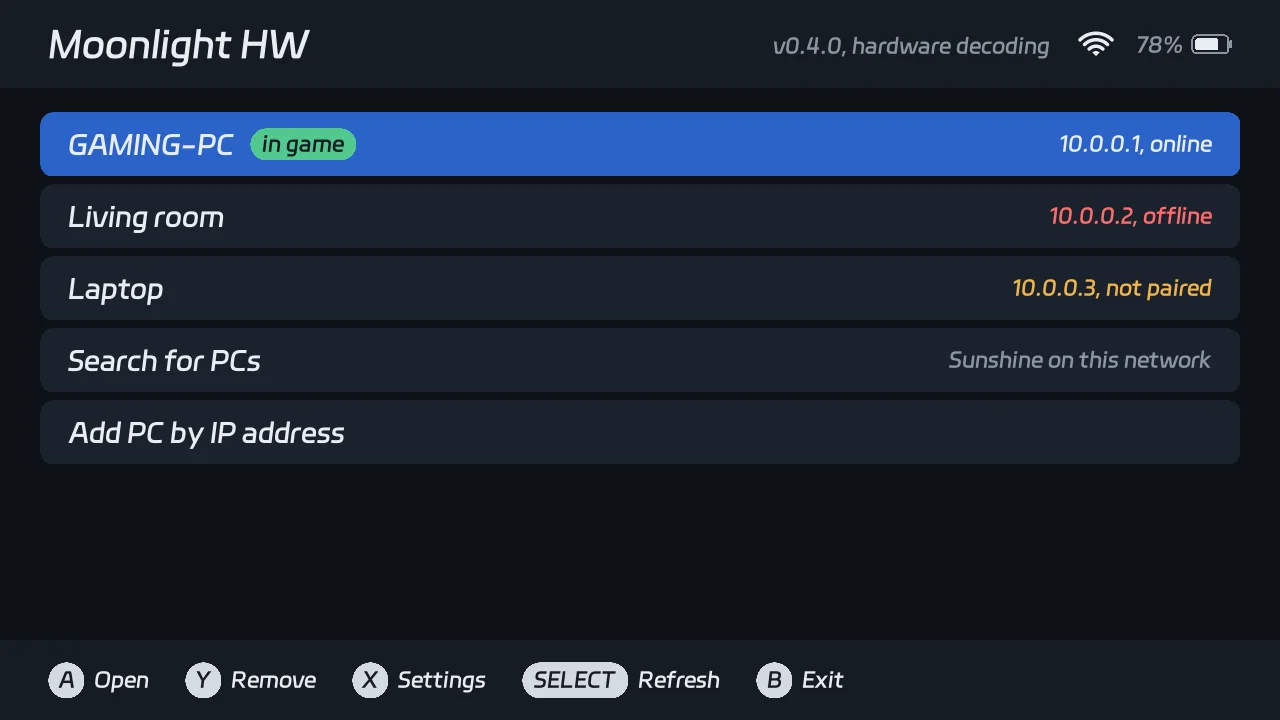
At first I only wanted to add hardware acceleration to Moonlight. One thing led to another, and I ended up writing an entire client. It’s called moonlight-tsp, and on the handheld it shows up as Moonlight HW. The “HW” is for the hardware acceleration I set out to add.
Finding the hardware on a closed firmware
The vendor libraries are closed, and the kernel is Allwinner’s own Linux 4.9 with TrimUI’s changes on top. Luckily, two of the vendor’s decoder libraries (CedarC 1.3.0) still had their debug info in them. That gave me the exact layout of every struct the decoder uses. I copied those layouts into a header, with a compile-time check for every offset that matters. If a struct is ever off by a byte, the build fails instead of the decoder.
The decoded pictures don’t come out as dmabuf buffers, the usual way to share video between devices on Linux. They do carry IOMMU addresses, though, which are the addresses that the hardware blocks see. To my surprise, the IOMMU driver on this kernel puts every device in one shared address space (“we just use one domain”, says a comment in its source). That means the display engine and the other blocks can read the decoder’s output directly by address.
A small probe tool then read the layer configuration out of the display driver. The menus use one of the two video channels, which leaves the other one free for the stream, on top of them.
I also learned that a display layer outlives the process that set it. If a test program crashed, its last frame just stayed on the screen, so I always kept a reset command ready. The driver holds on to the last two frames it showed, too, even after the layer is off. To push the real frames out, the client shows a tiny transparent picture nine times when it exits.
The screen itself was the next problem. It’s really a 720x1280 portrait panel that the system turns sideways. The display engine can’t rotate video layers, so something else has to rotate every frame. The decoder can do it for H.264 while it decodes, but not for HEVC, and it made each H.264 frame take 8.3 ms to decode instead of 3.3 ms. G2D, the 2D accelerator, rotates a frame in about 1 ms, so that’s where the rotation went.
G2D took the most digging. The struct that programs pass to its driver is 108 bytes on the TrimUI kernel, while the public A133 header says 96. To find the real layout, I read the kernel out of the boot partition and disassembled the G2D functions. /proc/kallsyms told me where each function was. The G2D demo programs on the device were no help. They were built for a newer ION (the kernel’s memory allocator) than the one this kernel has.
Even the rotation direction needed a test. The display engine can capture its own output, so I showed an asymmetric test pattern and checked where it ended up: 270 degrees.
From the network to the screen
This is the path each frame takes in the finished client:
- moonlight-common-c, Moonlight’s shared streaming library, receives the video from Sunshine.
- Cedar decodes it.
- G2D rotates the picture into a ring of six buffers.
- A display engine layer shows the buffer.
The CPU only passes addresses around. The ring started with four buffers. Wi-Fi delivers frames in bunches, though, and 5.9% of the pictures found no free buffer and were skipped. With six buffers, only 38 of 6,339 were skipped.
Audio skips the system mixer and goes straight to the sound hardware in 5 ms chunks. When more than 40 ms is queued, the client drops audio to catch up. The audio still goes through the system’s software volume control, so the volume keys keep working.
The client is two programs, so that a stuck stream can’t freeze the whole handheld. The UI draws the menus with SDL2 and starts a separate stream engine for each stream. It also watches the engine. If the engine stops responding, the UI kills it and shows a message.
Two frames of lag nobody asked for
The first decoder test worked, but every picture came out two frames late. At 60 fps that’s about 36 ms of extra lag, which is a lot for game streaming.
To measure it, I gave each test frame a small block in the corner with a brightness that depends on the frame number. Reading the block back from each decoded picture told me exactly how far behind it was. (The timestamps couldn’t, because the decoder rewrites them.)
There were two causes. First, the vendor’s stream parser only knows that a frame has ended when the next one starts. If you send one frame at a time, it’s always a frame behind. The fix is to send something after each frame that the parser accepts as the start of a new one. For HEVC that’s an access unit delimiter, a tiny marker that starts a new frame. The H.264 parser doesn’t accept those. It does accept a copy of the stream’s PPS (picture parameter set, a small block of decoder settings), so that’s what the client appends.
Second, the parser waits for new data with a vendor function that checks in a loop and sleeps a little longer each time. A new frame could sit for up to 10 ms before the parser noticed it. The function lives in a vendor library, but the dynamic linker lets the program itself provide a function with the same name. So the client has its own SemTimedWait, which sleeps until new data arrives, and the vendor libraries call that one instead.
With both fixes, H.264 frames took 3.39 ms on average from submission to a decoded picture, with no frames of lag. HEVC took 2.76 ms.
Bugs that weren’t where I looked
Once streaming worked from the app, the UI’s watchdog killed the first three streams, after 37 seconds, 56 seconds and 11 minutes. And of course I looked in the wrong places first.
The first kill left a kernel warning about a lost lock in the video engine driver, so it looked like the decoder was hanging. I added a thread dump to the watchdog, and the next kill showed every thread idle. My next suspect was vendor code that closed the engine’s timer or socket by mistake. I made the engine refuse and log any attempt to close its own file handles. That guard is still there, but it caught nothing.
The answer was in the UI log the whole time:
engine: heartbeat lost (last line 18446744073709551615 ms ago, 52470 bytes received, socket open, fd 16)The UI read the clock once per loop and then stamped each heartbeat with a fresh reading. If the millisecond ticked over between the two readings, the heartbeat was 1 ms in the future. The time since the heartbeat was then -1 ms, which an unsigned number stores as 2^64 - 1. So a healthy engine looked like it had been silent for more than 580 million years! A small helper that treats a future timestamp as zero fixed it. (The lock warning was just a side effect of killing the engine in the middle of a hardware wait.)
The PC search had its own bug. It uses mDNS, the protocol that lets devices find each other on a local network. I have three PCs with Sunshine on my network, and the first version of the search found only one of them. The two Windows PCs only answer queries that come from port 5353, which is typical of the mDNS service built into Windows. The handheld already runs avahi (the usual Linux mDNS service) on that port, but avahi lets other programs share it. Once the search sent its queries from port 5353 too, it found all three, the Windows PCs within 10 ms.
Wi-Fi, again
During streams, the link stalled for 0.1 to 0.8 seconds about every four seconds, and now and then for up to 1.8 seconds. Pings to the router and to the PC stalled together, so the problem was the TrimUI’s radio. When I turned Wi-Fi power saving off by hand mid-stream, the average ping to the router dropped from 59 ms to 12.5 ms. The longest one went from 1.8 seconds to 0.13 seconds. Now the client turns power saving off when a stream starts and back on when it ends. There’s a setting if you’d rather keep it on.
The OBSS scan from my last post, a Wi-Fi scan that stalls the link every 300 seconds, is still there too. My fix only filters it while a Moonlight launcher has switched the filter on, and the Moonlight HW launcher does that the same way the stock launchers do. If you have the fix installed, it works for both apps.
Streaming with Moonlight HW is also how I found a bug in the fix. One stream had short stalls at about 271 and 571 seconds, exactly one OBSS interval apart. But the filter’s log didn’t exist, so it hadn’t rewritten a single scan. My router had changed channel, and the fix only recognized the old one. I fixed that in version 0.2.3.
How it performs
I measured all of these on the handheld at 1280x720 and 60 fps:
- With local test streams, each frame is on the screen about 4.5 ms after the client gives it to the decoder, with no frames of decoder lag. Decoding, rotating and showing the video uses about 7% of one CPU core, and the memory use didn’t grow during a 10-minute run.
- In a 2-minute stream from Sunshine at 10 Mbps, the client showed 6,301 of 6,339 frames with no decode errors. The whole engine used about 19% of one core. Audio was the biggest part of that, at about 9%, and that test went through the slower shared audio path.
I don’t have a side-by-side test against the stock client yet. Moonlight HW doesn’t change the CPU settings at all, but I haven’t measured how much CPU time or battery that saves.
What it can do
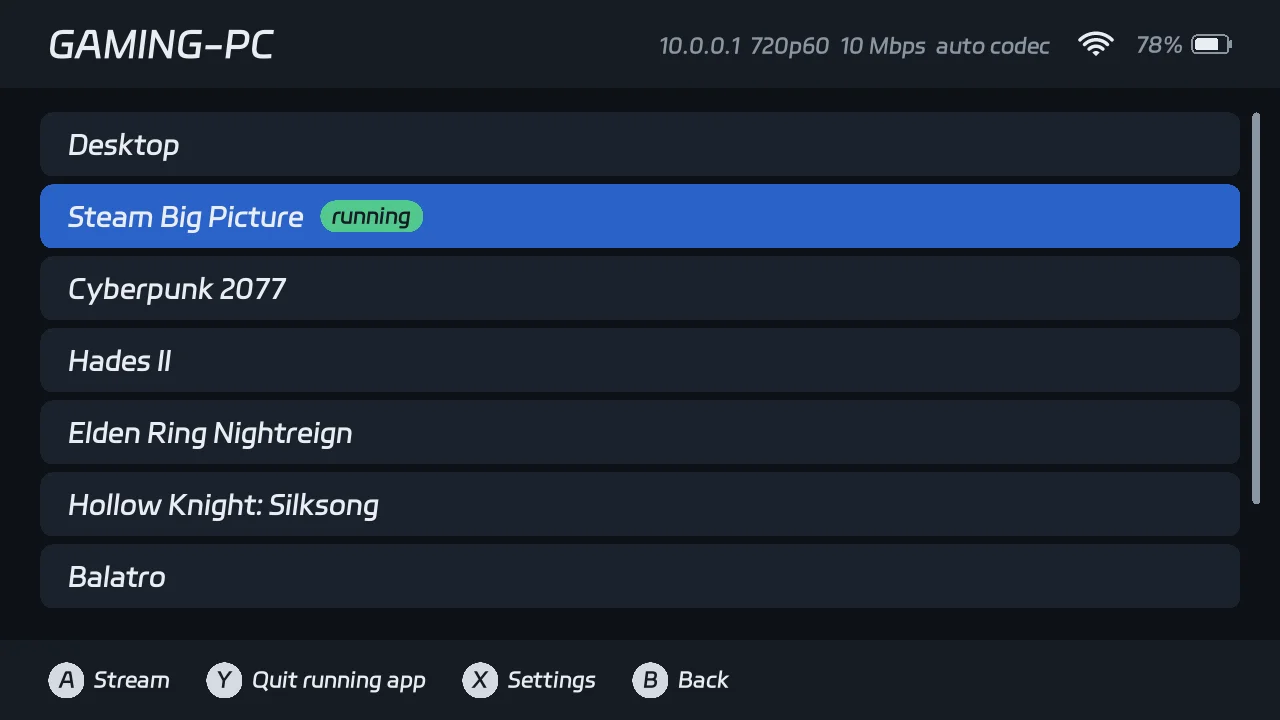
The basics are what you’d expect from Moonlight. The app finds Sunshine PCs on the network, pairs with a PIN, lists the apps on a PC, and starts or resumes them. If the stock Moonlight app is already paired with a PC, Moonlight HW copies that pairing at its first start, so you don’t need a new PIN.
Since the first public version, I’ve added:
- In-app updates. When the app starts, it looks for a newer release on GitHub and asks before it installs it. It checks the download’s size and SHA-256 hash and test-starts the new programs before it replaces the old ones. If the new version still doesn’t start, the app puts the old one back.
- Battery level and Wi-Fi signal in the corner of the menus. The app reads them every 5 seconds, never during a stream, and without starting a Wi-Fi scan. I’ve had enough of those!
- Rumble. The motor can only be on or off, so the app switches it on and off every 20 ms to make weak and strong rumble. In my first test, 30% strength felt more like a rattle. Now there’s a strength setting from 5% to 100%, with a test rumble.
- A Send key list for keys that the controller doesn’t have, like Esc, Alt+Tab, Alt+F4 and Win+G.
- Mouse mode. Hold MENU, and the right stick moves the pointer, the left stick scrolls and the buttons click.
- A setting that lets the PC play the sound too.
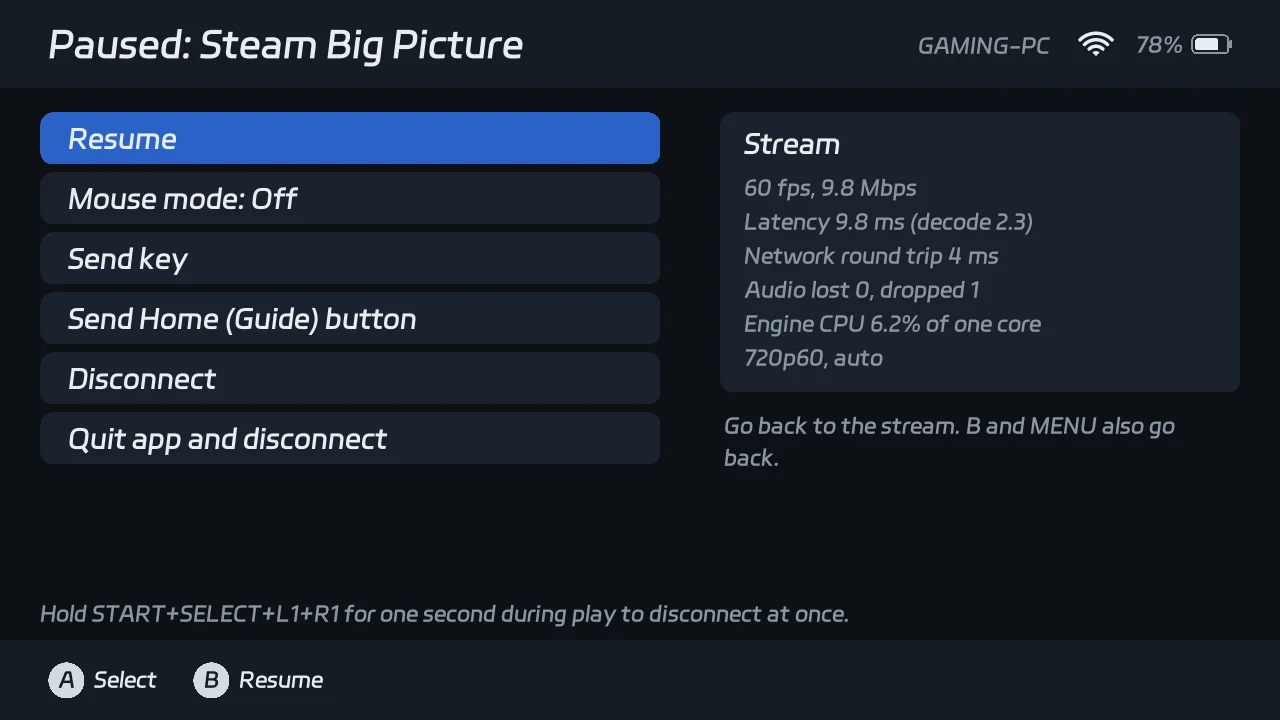
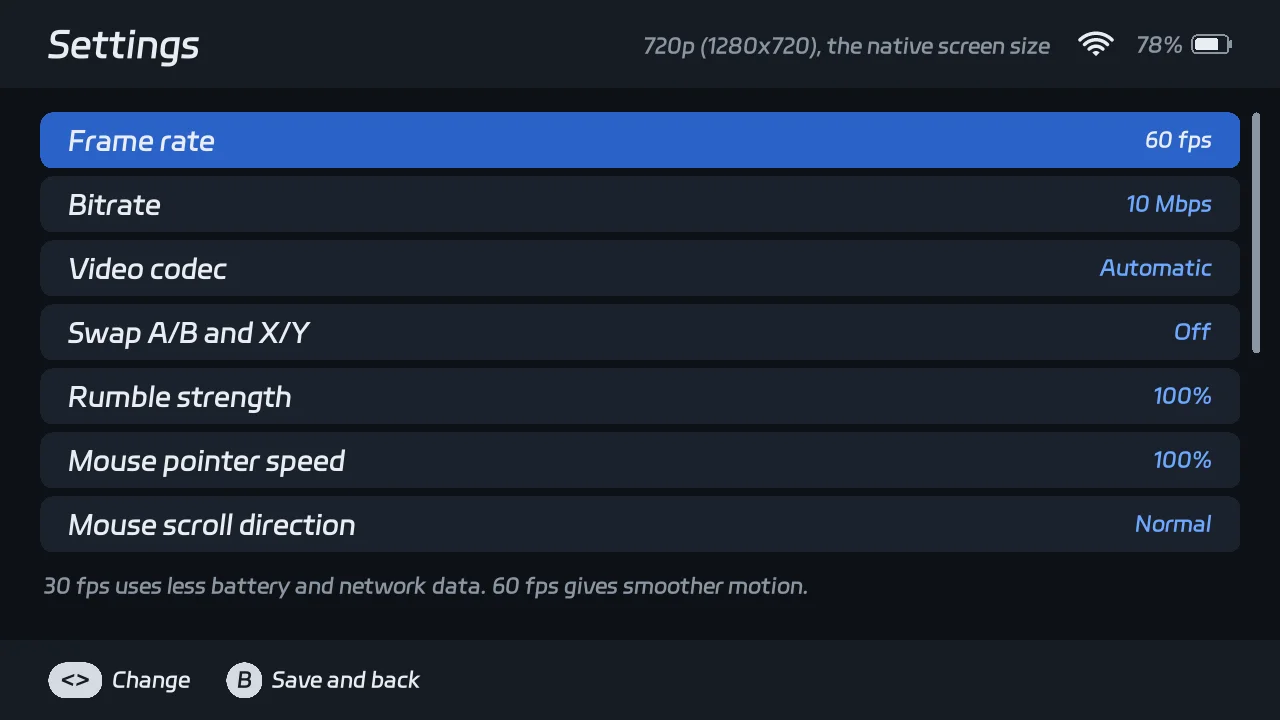
These images come from a script that draws each screen in a container, with sample PCs and made-up stream figures. None of them show a game, because the video plays on its own display layer, which a screenshot of the UI doesn’t include.
Installing it
You need a TrimUI Smart Pro with CrossMix-OS (I’ve only tested 1.3.0) and a PC with Sunshine on the same network.
- Download the latest
trimui-moonlight-tsp-<version>.zipfrom the releases page. - Turn off the handheld and put its SD card in your computer.
- Extract the ZIP to the root of the SD card. It holds
Apps/MoonlightTSP/, so the app ends up in theAppsfolder. (Some unzip tools put the files in an extra folder named after the ZIP. If yours does, moveMoonlightTSPintoAppsyourself.) - Put the card back, turn on the handheld and open Moonlight HW from the Apps menu.
If you have no saved PCs, the app opens the search. Pick your PC, type the PIN that the app shows into the Sunshine web UI on that PC, and you’re ready to stream. If you also want the OBSS fix, it’s in the Wi-Fi post. The buttons, settings and troubleshooting are all in the README.
What’s missing
These are the gaps I know about so far:
- The resolution is fixed at 1280x720, the native size of the screen.
- Some short test streams dropped audio packets, and I don’t know why yet.
- I haven’t measured how much battery it costs to turn Wi-Fi power saving off.
- Sunshine reports no support for reference frame invalidation, a cheaper way to recover from a lost frame. Without it, every frame that’s lost on the way costs a full keyframe, a complete new picture.
Next on my list are a text keyboard, Wake-on-LAN and box art. After that I’d like to add lower resolutions and an overlay that can show a keyboard and the stream figures on top of the video.