I have always loved the idea of small computers. Back in the day, I used to carry a little netbook around everywhere!
High-performance laptops have always felt like a terrible compromise to me. They are heavy, expensive, and still much slower than a real desktop. So I’ve long liked the idea of using an ultraportable laptop as a thin client for a powerful desktop or server. Recently, this dream setup has become easier to pull off than ever, thanks to services like Tailscale, Moonlight/Sunshine, and, of course, SSH.
But the netbook died before all the puzzle pieces could fall into place. Since then, even my favourite little laptop line, the GPD Pocket, has grown larger and less portable over time.
Occasionally, a smaller device would come out, but mostly for the niche ultraportable gaming scene. I love those devices too, and regularly put my GPD Win 2 in my pocket, but to me the whole point of the netbook was to be cheap, portable, and just good enough to serve as a thin client.
Enter the Chuwi MiniBook X: a very cheap little laptop with a solid screen, enough performance for light work, and a keyboard just large enough to type on comfortably. In fact, this article was typed on it!
This isn’t a review, but the MiniBook X has been an excellent little laptop over the past year or two, with one exception: its tablet-mode switch.
I didn’t think I would care about tablet mode, but it turns out to be really nice to flip the laptop into tent mode to watch videos in a hotel, or rotate it into portrait mode to read documents and articles in a pinch.
Unfortunately, the MiniBook X has an unusual setup for triggering tablet mode. Instead of a dedicated hinge sensor, it has two accelerometers, and software has to work out from them whether tablet mode should be on. The MiniBook X Linux project documents the tablet switch as a separate Linux support problem, and projects such as minibook-support and this dual-accelerometer implementation take different approaches to solving it. For me, this was the one feature I couldn’t get working reliably on Linux.
I tried some of those projects a few months ago and they mostly worked. But every now and then, tablet mode wouldn’t trigger when I expected it to. And if I can’t trust something to work every time, I tend not to use it.
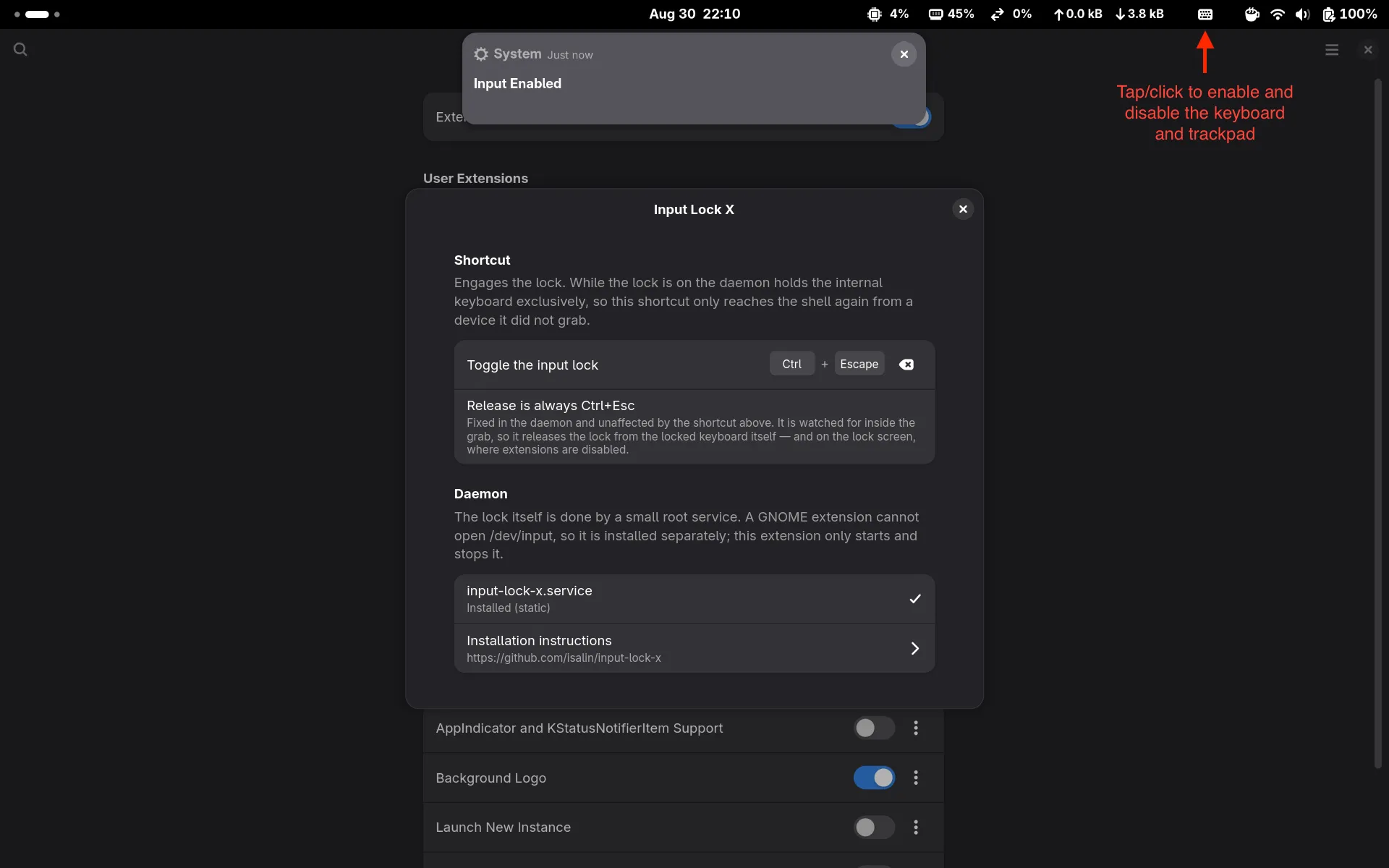
And so I made Input Lock X, a manual way to lock and unlock the built-in keyboard and touchpad with a key combination. It doesn’t interpret the accelerometers or try to make tablet mode automatic. It just gives me a reliable manual fallback for whenever I want to use the laptop as a tablet.
Technical implementation
Input Lock X is made up of a GNOME Shell extension and a small daemon that runs as root. The extension shows the current state in the panel and lets me toggle the lock from the touchscreen. It starts and stops the daemon through systemd’s D-Bus API and watches a state file, so the icon stays in sync with the actual lock state. The current version supports GNOME Shell 45–50 on both Wayland and X11.
I wrote and tested it on a Chuwi MiniBook X running Fedora, but the device
selection isn’t tied to that laptop. The daemon classifies devices by their
evdev capabilities and properties, so it should work on other Fedora machines
too, as long as the internal keyboard and touchpad show up as separate input
devices. If an internal device is connected through USB or Bluetooth, enable
include_usb or include_bluetooth in the configuration. I haven’t tested any
of that other hardware yet, though.
The daemon is written in Python using only the standard library. It scans the
evdev device nodes in /dev/input/event* and uses each device’s capabilities
and input properties to classify it as a keyboard, pointer, touchscreen, or
something else. In auto mode, it grabs the internal keyboard and touchpad. It
skips virtual devices and leaves the touchscreen and external USB or Bluetooth
input devices available for recovery. Grabbing a device with EVIOCGRAB gives
the daemon exclusive control of it, so its events no longer reach the
compositor or applications.
While the keyboard is grabbed, GNOME never sees its key presses, so the daemon
watches the grabbed events for Ctrl+Esc itself and unlocks when it sees them.
That shortcut also works on the lock screen, where GNOME disables the
extension. The daemon refuses partial
locks and only publishes its state after every selected device has been
grabbed. If it exits, its file descriptors close and the kernel releases the
grabs.
There’s also a command-line tool. It works over SSH too, which gives me a recovery path if something goes wrong. The installer adds the systemd service, polkit rule, and optional sudoers entry needed to control it locally and recover over SSH.
The repository includes offline unit tests and a classifier that reads the
kernel’s device information without grabbing anything. make test runs both,
so you can see which devices auto mode would grab before installing.
Input Lock X is deliberately manual, and for me that trade-off is worth it: I get a reliable way to use the MiniBook X in tablet mode without trusting a sensor path that occasionally fails. If you want to try it, the source and installation instructions are in the GitHub repository. The daemon runs as root and can disable the wrong devices if it’s misconfigured, so keep an SSH session open the first time you test it.