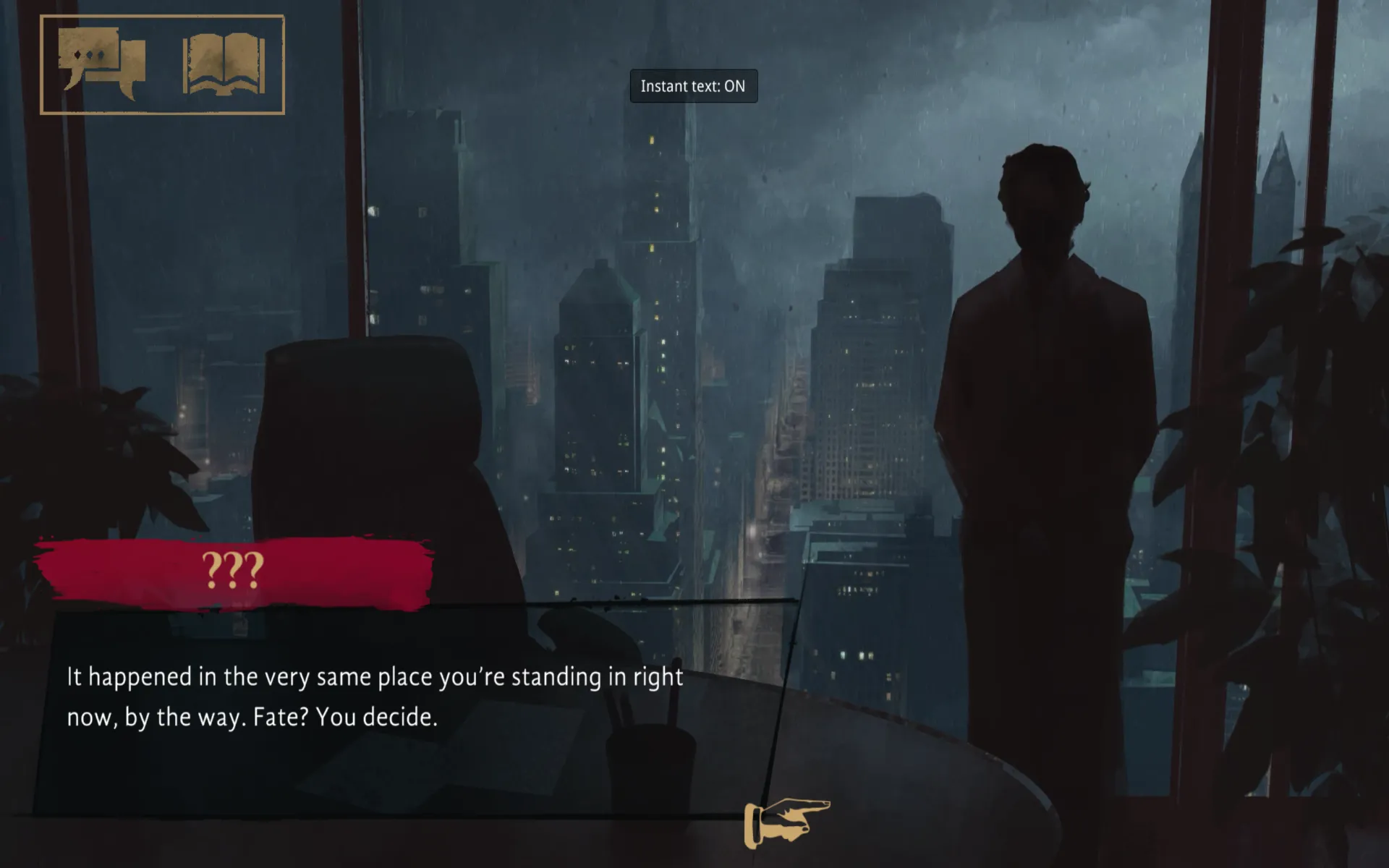
I’m a big fan of books. Reading is probably my biggest hobby. I also really like video games. So unsurprisingly, I like visual novels. One of my favorites is Vampire: The Masquerade - Bloodlines. It’s one of those games that I play every few years even to this day.
So when I heard that there was a visual novel set in the same universe, I was excited for Vampire: The Masquerade - Coteries of New York. Unfortunately, one of the few things that I can’t stand in visual novels is when the text appears slowly, one character at a time, like a typewriter. I read relatively quickly, and having to wait for the text to appear, or constantly double click to advance the dialogue, is a huge annoyance for me. So for many years, Coteries of New York sat in my Steam library, unplayed, because I couldn’t stand the typewriter effect. I wanted to play it, but I just couldn’t get past that one thing.
I actually checked in once a year or so to see if they added the setting. There’s a couple of forum posts asking for it. But it never happened. So I finally decided to do something about it myself!
I wrote a small BepInEx plugin make the text instant. The source and a ready-to-install release are at github.com/isalin/coteries-instant-text, if you want to try it.
First contact with Unity modding
I knew it was relatively easy to mod unity games, and it didn’t seem too difficult to just change the text speed, right? What came out of it is a BepInEx 5 plugin called Instant Text. It loads alongside the game, patches the two places where typewriter speed gets set, and pushes that speed high enough that a line finishes the moment it starts. There’s an F8 toggle, a config file, and a small on-screen confirmation when you hit the hotkey, and that’s the extent of it. Choices, dialogue advancement and audio triggers all behave exactly as they did before, because the typewriter is still running its normal routine, just at a ridiculous speed.
Going in, my experience with Unity games from the inside was zero. I knew they shipped managed assemblies, I’d seen modders talk about BepInEx, and I had a vague sense that Harmony was the thing people used to patch C# methods at runtime.
Luckily, the first thing I discovered is that a mod like this doesn’t involve rebuilding the game or touching its files at all. BepInEx acts as a plugin loader. You drop it next to the game executable, run the game once so it creates its folder structure, and then put your own DLL in at:
BepInEx/plugins/InstantText/InstantText.dllThat part turned out to be far more straight forward than I expected. Figuring out what to actually patch was the harder half. Unity games generally keep their game code in a managed assembly called Assembly-CSharp.dll, and this one is no exception. The mod project references that assembly locally, along with the Unity and BepInEx ones, so the plugin compiles against the same types the game itself uses. Those DLLs sit in libs/ while building and are ignored by git, since they come from my own game install and aren’t mine to redistribute. It leaves the project with a slightly lopsided shape, where the source is two small files but building it requires a pile of reference assemblies you have to supply yourself. That’s apparently normal for this style of Unity mod, but it wasn’t obvious to me until I tripped over it.
Finding the lever
The actual work started with dnSpy. I opened the game’s Assembly-CSharp.dll in it and went looking for anything to do with typing speed, which is how I found out the game uses PixelCrushers Dialogue System. That was good news, because it meant the behavior was likely centralized in one place rather than hand-rolled separately for every screen that shows text.
Tracing it through, the chain turned out to be short. The game reports the player’s chosen speed as an int from a settings method:
Settings.GetCurrentTypingSpeedValue()That result gets picked up by TypingSpeedSetter.UpdateTypingSpeed() and pushed into the active TextMeshProTypewriterEffect through the base class method:
AbstractTypewriterEffect.SetSpeed(float)Which gave me two places to intervene, and I ended up using both. The first patch changes what the settings layer reports, so with the mod enabled GetCurrentTypingSpeedValue() returns 100000 regardless of which preset is selected, and everything downstream propagates that on its own. The second patch is a backstop for anything that skips the settings layer and calls SetSpeed() directly, which PixelCrushers’ internal sequencers can do. In that case the mod sets charactersPerSecond to the same value afterwards.
Both are Harmony postfix patches, which means the game’s own method runs first and the mod adjusts the result once it’s done. That suited the problem well, since the game’s logic could stay exactly where it was and I only had to change the number it landed on.
Why not just disable the typewriter?
The obvious shortcut here is to find the typewriter component and switch it off entirely, and I’m glad I didn’t. Reading through PixelCrushers’ code, the typewriter isn’t only drawing characters. It fires onBegin and onEnd around each line, and it processes RPG-Maker-style pause tokens embedded in the text. Skipping the coroutine outright would have given me instant text along with a set of small, hard-to-trace bugs: lines that render but never signal they’ve finished, continue prompts appearing at the wrong moment, pauses silently dropped.
So the mod leaves the coroutine alone and only changes the number feeding it. 100000 was picked quite deliberately, between two limits. It’s high enough that even a very long line completes inside the typewriter’s first tick, since at 100,000 characters per second a 10,000-character line resolves in 0.1 simulated seconds and Play() gets there on its first pass. It’s also low enough to stay clear of float precision problems and, more importantly, to leave the if (charactersPerSecond > 0f) early-out untouched. The typewriter still believes it has real work to do, so every event it’s supposed to fire still fires, and the text finishes before you notice it started.
The plugin itself
The plugin is unremarkable, which was the goal. The entry point is a standard BepInEx class:
[BepInPlugin(GUID, NAME, VERSION)]
public class Plugin : BaseUnityPlugin
On Awake() it binds three config entries, Enabled as the master switch, ToggleHotkey defaulting to F8, and ShowToast for the on-screen ON / OFF indicator, then hands the assembly to Harmony:
new Harmony(GUID).PatchAll(typeof(Plugin).Assembly)That’s the whole lifecycle. There’s no scene management, no UI framework and no asset loading, so the plugin sits idle and changes a number when the game asks for one. The hotkey handling is equally plain: Update() checks whether the shortcut was pressed, flips Enabled if it was, and draws a short message through Unity’s immediate-mode GUI. I wouldn’t reach for IMGUI to build a real interface in 2026, but for a label that appears for a second and a half and then goes away, pulling in a UI system would be silly.
One annoying detail is that flipping the config value on its own does nothing to a typewriter that already has a speed applied, so the toggle looks broken until the next dialogue line starts. The mod handles it by listening for Enabled.SettingChanged and calling ReapplySettings(), which invokes the game’s own settings-applied event:
Settings.OnSettingsAppliedThat pushes the current speed back through the game’s normal update path, which is much nicer than reaching into the scene myself. There’s a fallback for when that event isn’t available, which walks the scene for active AbstractTypewriterEffect instances and calls SetSpeed() on each one directly. It’s defensive code and it might never run, but runtime modding is full of things that should be present and occasionally aren’t, and I’d rather carry a few extra lines than have the hotkey quietly stop working in one scene.
There’s still one rough edge I haven’t fixed. A line that’s already being typed when you press F8 finishes under the old setting, because the speed was captured when the line began. In practice you press the key, the current sentence finishes at whatever pace it was going, and everything after it is instant, so I’ve left it alone.
Building and installing it
The build is as plain as the plugin. The project targets net46, matching the old Mono profile this BepInEx 5 setup expects, and lives at:
src/InstantText.csprojIt references BepInEx, Harmony, the UnityEngine modules, and PixelCrushers and the game’s own types through Assembly-CSharp, all out of libs/. Building the release package is one command:
./build.shThe script does three things:
- Builds
src/InstantText.csprojin Release mode. - Stages the plugin under
BepInEx/plugins/InstantText/. - Creates
dist/InstantText-v1.0.0.zip.
I shaped that zip so it extracts straight into the game folder with everything already in the right place, so nobody has to work out where the DLL belongs.
Installing it is four steps: put BepInEx 5 Mono x64 into the game folder, launch the game once so it builds its config and plugin directories, copy the InstantText folder into BepInEx/plugins/, then launch again. On Windows, BepInEx ends up next to the game’s .exe. On native Linux it sits beside the .x86_64 binary and you launch through run_bepinex.sh, after pointing that script’s executable_name variable at the game. On Steam Deck, or anywhere else running the game through Proton, use the Windows build rather than the Linux one. If that first launch feels sluggish, this Steam launch option sorts it out:
WINEDLLOVERRIDES="winhttp=n,b" %command%After the first modded launch, BepInEx writes out its config file:
BepInEx/config/com.copilot.vtmcony.instanttext.cfgThe defaults in there are already what I wanted, so there was nothing for me to change: enabled, F8, toast on.
Unity modding is smaller than it looks
The thing that surprised me most is how little of this was actually about Unity. You aren’t reverse engineering a binary or fighting the engine. You’re reading ordinary C# in a decompiler, looking for the one method that owns the behavior you care about, and then changing what it returns. Writing the patch was the easy part, and the whole plugin is two small files. Narrowing “this text is too slow” down to “this settings method returns the speed and this typewriter method consumes it” was the part that took real work.
After that it was just hygiene. Patch the settings layer, add the direct typewriter path as a backstop, leave the original lifecycle intact, expose a config toggle so people can turn it off, package the DLL where BepInEx expects it, and keep the game’s own assemblies out of the repository. None of that is clever, but it’s what makes the difference on someone else’s machine.
The result is satisfying and a bit boring. You install the plugin, start the game, and the text is just there! Press F8 and it goes back to being a typewriter, press it again and it stops. That’s the entire feature, and it made it dramatically easier for me to enjoy a game I wanted to play for years. I hope it does the same for anyone else who wants to read at their own pace.