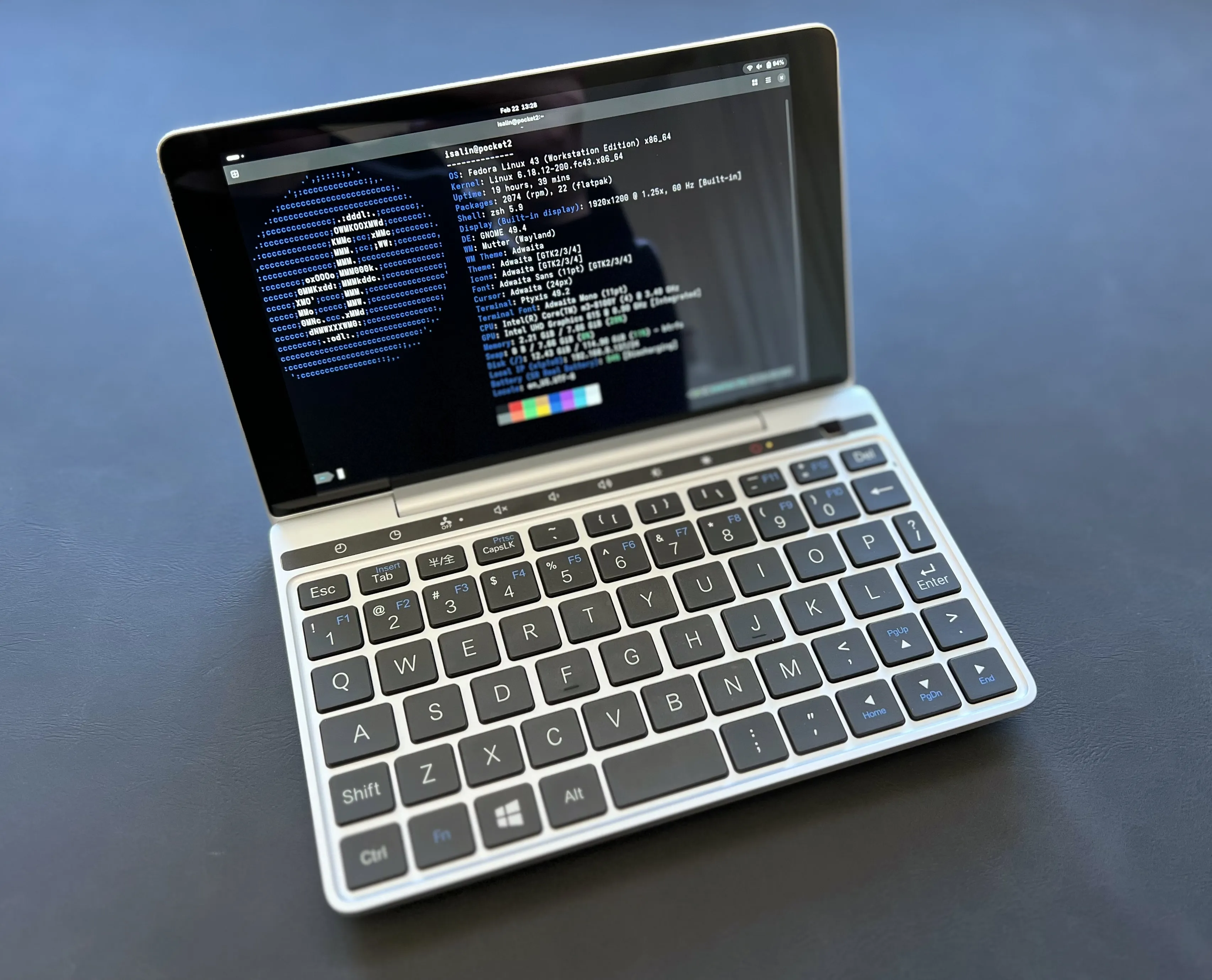
Nearly 8 years ago, I bought a GPD Pocket 2, a small and portable x86 laptop that ran Windows 10. I’ve been carrying it around with me ever since. It’s been a great little machine when travelling or when I just want to do some light work on the go.
I’ve always been more of a Linux user, and the very first thing I did with the GPD Pocket 2 was to install Linux on it. But I immediately discovered that the touch screen appeared to be mirrored! Touching on the left side of the screen would register as a touch on the right side, and vice versa. This hadn’t been the case on the Windows installation. But even switching back to Windows didn’t fix the issue. I ended up sending the device back for repair, and after a few weeks I got it back with the touch screen working properly again. But I got too paranoid about it happening again, and I ended up sticking with Windows on the device.
Fast forward to 2026, and Microsoft is ending support for Windows 10. I briefly tried Windows 11 on the GPD Pocket 2 last month, but it really didn’t seem like a good fit for me. This was my last machine actually running Windows, and given the direction Microsoft is taking with their operating system, I don’t see myself using it on any of my devices in the future. So I decided to give Linux another try on the GPD Pocket 2.
I installed the lastest version of Fedora, and everything seemed to be working fine at first. But then I noticed that the device kept waking up from sleep mode on its own. This was really annoying, especially for such a ultra-portable device.
Fortunately, Linux exposes enough low-level interfaces to diagnose and correct issues like this!
Figuring out the issue
I started out by investigating which suspend mode the GPD Pocket 2 was using. I ran the following command in the terminal:
❯ cat /sys/power/mem_sleep
s2idle [deep]
This shows that the system supports two suspend-to-RAM modes: s2idle and deep. The brackets indicate the currently active default, so [deep] means the GPD Pocket 2 is using the traditional ACPI S3 suspend-to-RAM mode. This confirms the device is entering full suspend (with most hardware powered down and only RAM kept alive) when put to sleep, not the newer “modern standby” style idle state.
Luckily, Linux exposes wake-capable devices here:
❯ cat /proc/acpi/wakeup | grep enabled
LID0	  S3	*enabled   platform:PNP0C0D:00
RP09	  S4	*enabled   pci:0000:00:1d.0
XHC	  S3	*enabled   pci:0000:00:14.0
This shows that the lid switch (LID0), the PCI Express Root Port 9 (RP09), and the USB 3.0 controller (XHC) are all enabled to wake the system from sleep. One of these devices is likely the culprit that’s causing the GPD Pocket 2 to wake up on its own.
Disabling wake-up devices
Now, I really don’t want to disable the lid switch, since I want to be able to wake the device by opening the lid. So by using the power of wishful thinking, I decided to assume the LID0 device is working properly.
RP09 refers to the PCI Express Root Port 9, which is a part of the system’s chipset that manages PCIe devices. Fortunately for me, the RP09 wake up powers are limited to S4 (hibernation) and not S3 (suspend-to-RAM), it cannot be responsible for my sleep wakeups.
This leaves the XHC device, which is the USB 3.0 controller. This is apparently a common culprit for wake-up issues, as USB devices can often generate wake-up events. Personally, I generally don’t use any USB devices with the GPD Pocket 2, so I decided to disable wake-up for the XHC device.
To disable wake-up for the XHC device, I ran the following command:
❯ echo XHC | sudo tee /proc/acpi/wakeup
By writing to the /proc/acpi/wakeup file, we can temporarily toggle wake-up for the XHC device to disabled. To verify that it worked, I ran the cat /proc/acpi/wakeup command again:
❯ cat /proc/acpi/wakeup | grep enabled
LID0	  S3	*enabled   platform:PNP0C0D:00
RP09	  S4	*enabled   pci:0000:00:1d.0
❯ cat /proc/acpi/wakeup | grep XHC
XHC	  S3	*disabled  pci:0000:00:14.0
This shows that the XHC device is now disabled for wake-up.
Next, I kept using the GPD Pocket 2 for a few days to see if the issue was resolved. I’m happy to report that the device no longer wakes up on its own when I put it to sleep!
Making the change permanent
The change I made to disable wake-up for the XHC device is temporary, and it will be reset the next time I reboot the device. This is great for testing, but I want to make this change permanent so I don’t have to run the command every time I start the device. To make the change permanent, I created a new systemd service that runs the command to disable wake-up for the XHC device at startup. I created a new file called disable-xhc-wakeup.service in the /etc/systemd/system/ directory with the following content:
[Unit]
Description=Disable USB XHCI wake source

[Service]
Type=oneshot
ExecStart=/bin/sh -c 'grep -q "XHC.*enabled" /proc/acpi/wakeup && echo XHC > /proc/acpi/wakeup'
RemainAfterExit=yes

[Install]
WantedBy=multi-user.target
This service checks if the XHC device is enabled for wake-up and disables it if it is. The RemainAfterExit=yes option ensures that the service is considered active even after the command has been executed, which is useful for oneshot services.
After creating the service file, I enabled the service to start at boot:
sudo systemctl enable disable-xhc-wakeup.service
This ensures that the XHC device will be disabled for wake-up every time I start the GPD Pocket 2.

Now, I’m back to carrying around my trusty GPD Pocket 2 everywhere, and it’s finally running Linux flawlessly like I originally planned!